


Table of Contents
ToggleM365 Migration
Businesses often outgrow platforms, seek better cost-efficiency, need to consolidate tools, or face compliance requirements that push them to migrate emails away from Microsoft 365. Email migration is not just a technical task—it’s a strategic move that requires careful planning, clear communication, and structured execution.
In this guide, we walk you through the phases of a Microsoft 365 email migration to ensure a smooth transition with minimal disruption to your business.
Overview Diagram: Email Migration Journey
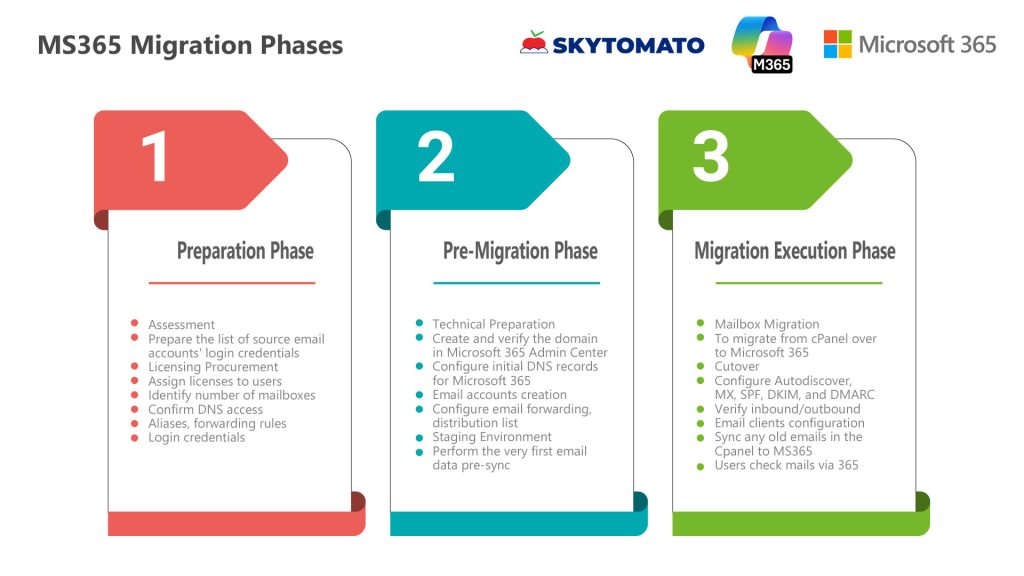
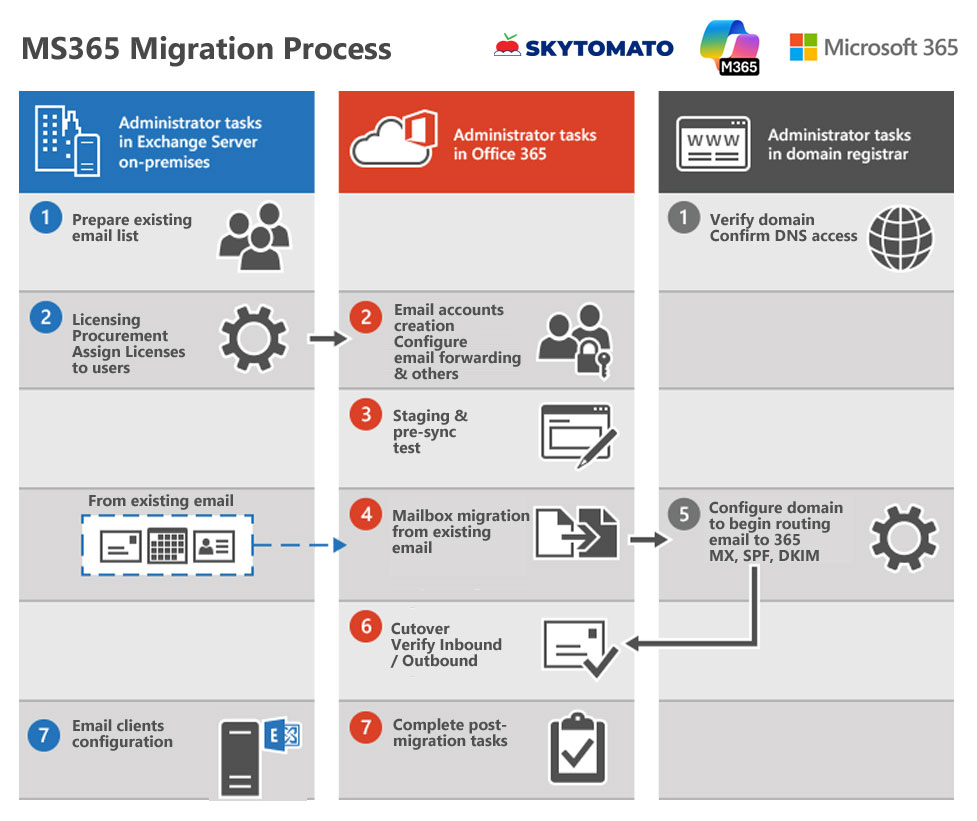
The main steps you perform for a cutover migration are shown in the following illustration.
Preparation Phase
Goal: Understand the environment and define the migration scope
- Assessment
- Prepare the list of source email accounts’ login credentials. (Required during migration)
- Licensing Procurement
- Assign licenses to users
- Identify number of mailboxes, size of data, and the distribution lists.
- Confirm DNS access (domain registrar credentials).
- Aliases, forwarding rules.
- Login credentials
Pre-Migration Phase
Estimated 7 days to 2 weeks
Goal: Set up the new environment and ensure it’s ready to receive mail.
- Technical Preparation
- Create and verify the domain in Microsoft 365 Admin Center.
- Configure initial DNS records for Microsoft 365 (TXT verification).
- Email accounts creation
- Configure email forwarding, distribution list (if any).
- Staging Environment
- Perform the very first email data pre-sync and ensure all the mailboxes are accessible.
Migration Execution Phase
Estimated 2 days to 2 weeks depending on number of mailboxes and size.
Goal: Transfer email data from Microsoft 365 to the new platform.
- Mailbox Migration
- To migrate all the new email data from cPanel over to Microsoft 365.
- Cutover
- Configure Autodiscover, MX, SPF, DKIM, and DMARC records for Microsoft 365.
- Verify inbound/outbound mail flow.
- Email clients configuration (Outlook, Smartphone)
- Sync any old emails in the Cpanel to MS365 has not reach 365 during propagation.
- Users who did not manage to setup the local outlook software can still use email via 365 portal.
M365 Check list for setting up and Pre-Onsite Support
- List of all email users (onmicrosoft, current emails)
- List of M365 plan for which user (Current App plan , New Basic, New Standard)
- List of current users Outlook version.
- Need to know which user use older Outlook that is not compatible with M365. (Outlook 2016 & below)
- Which user wants to backup their old emails and the PST file size (export as PST in their local device)
- User has to be present during the setup for the MFA authentication.
- App will need to be install for those that is using the outdated version (Also depends on which M365 plan that is user is assign to)
- Any users with more than 50GB of email is required to clean & backup their emails before the migration starts.
(Users with more than 50gb now in cpanel need to reduce to about 40gb)
A Smooth Microsoft 365 Migration
Migrating to Microsoft 365 requires more than just technical tools—it requires a phased, well-communicated strategy that ensures data is preserved, users are supported, and business continuity is maintained.